
Login

You must have installed Loopio for Salesforce in Slack or Microsoft Teams.
Logging into Loopio for Salesforce
After installing the Loopio for Salesforce app in Slack, you can use the basic features like login, query the Response Library, get answers to questions, update the project question answers directly from Slack, and log out. To access the Loopio for Salesforce, proceed as follows:
Open Slack, and click the Loopio for Salesforce.
Tap the typing area, and enter Hi/Hello.
(The conversational application responds to your message.)Type Log in/Sign in and press Enter.
(The application will respond back with the following options - Log In to Production and Log In to Sandbox.)Click the Log In to Production or Log In to Sandbox option.
(When you log in for the first time, you will be routed to a browser and asked to provide permission to access the URL and user data.)Select the Allow button on the Allow Access page.
Enter the login credentials and click Login.
(You will be directed to the Loopio for Salesforce page with a success message and prompted to open the Loopio for Salesforce app.)Close the browser and go back to Loopio for Salesforce app in Slack.
Type your query inside the typing area and press Enter.
The application will search your library, react to your enquiries, and complete tasks as assigned.
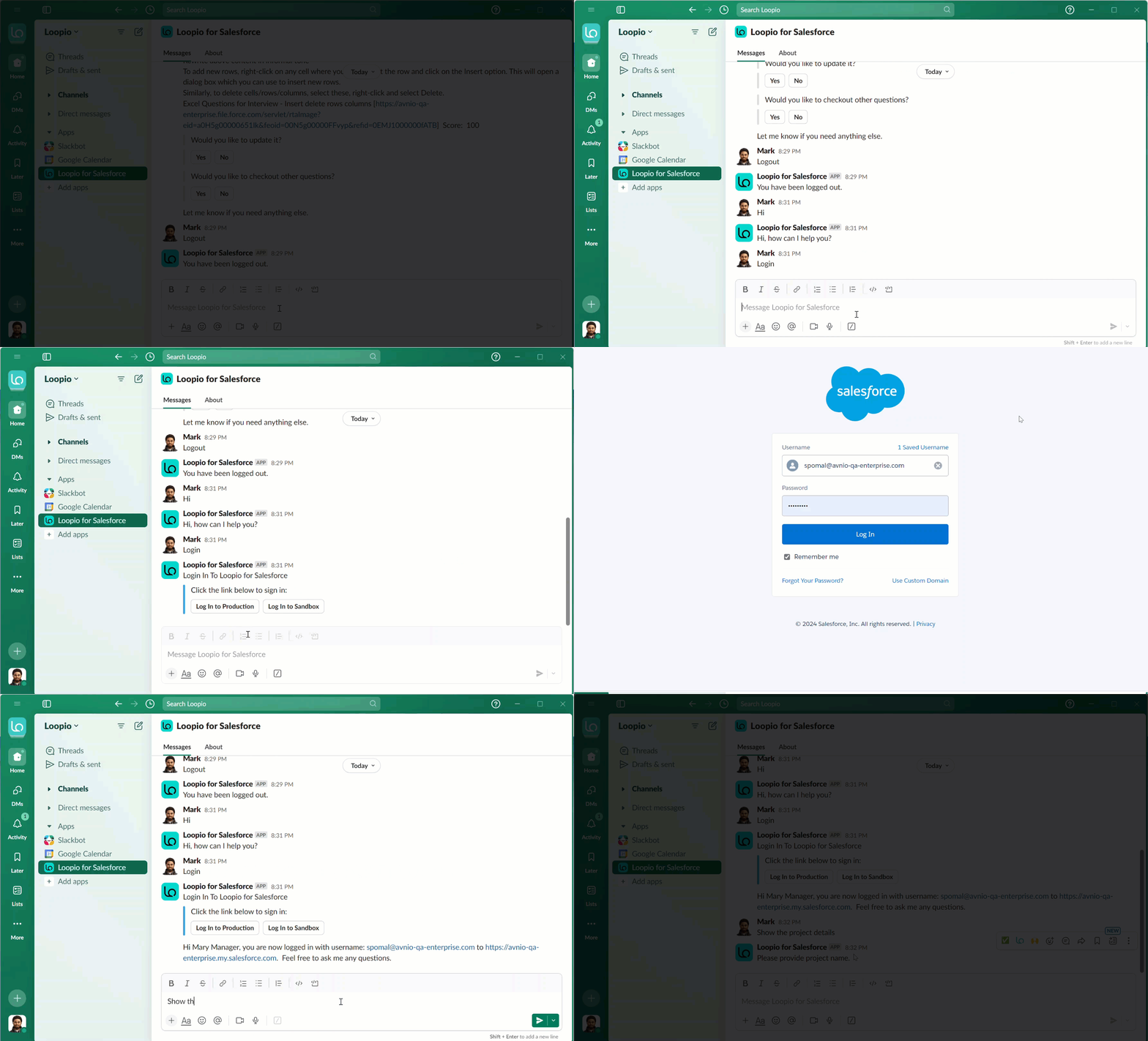
Click to enlarge

Loopio for Salesforce is currently only supported and installed on Slack and Microsoft Teams channels (both web and mobile apps). If you cannot locate our app on both channels, you must contact your administrator to ensure that there are no restrictions on installing our app.